10 Ways to Protect Your Personal Email.
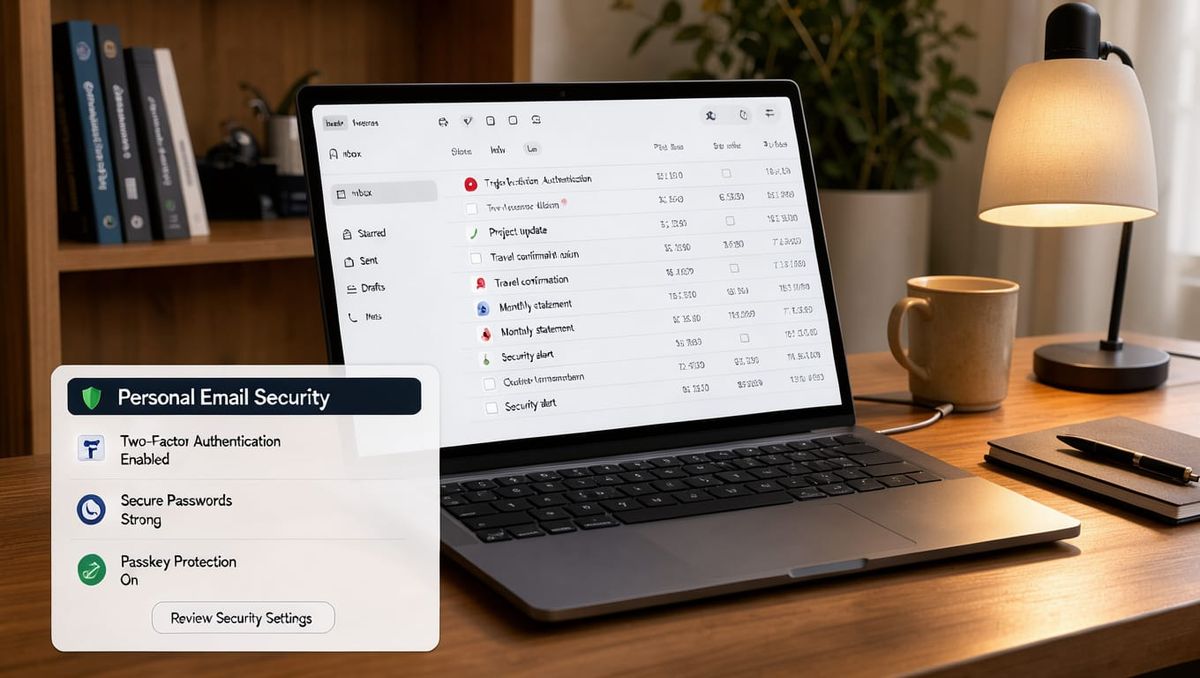
We can protect personal email with ten practical habits that strengthen sign-in. They reduce risky clicks and prepare us to recover from mistakes. Email protection works best when privacy, access, and recovery all get attention.
Our inboxes hold private notes, receipts, and links to other accounts. A scam or lost password can reach far beyond one mailbox. The ten habits below cover privacy, scam avoidance, account access, and recovery, so we can start with the account we use most.
Key Takeaways
- Use a unique sign-in for every email account.
- Check unexpected requests before replying or clicking.
- Limit access to sensitive messages when possible.
- Keep devices and account permissions up to date.
- Know how to recover messages and account access.
We do not need to change every habit at once. Start with the email account that protects the most of our other logins.
What email protection covers and why it matters
In 2025, the FBI recorded 24,768 business email compromise complaints and more than $3 billion in reported losses. Business email compromise (BEC) is a scam in which someone impersonates or takes over a trusted business account to divert payments or obtain information.
The FBI's 2025 IC3 report also recorded 191,561 phishing or spoofing complaints. Email security protects the confidentiality, integrity, and availability of our messages and accounts. The 2025 IC3 Annual Report lists those complaint totals and reported losses.

Take Greater Control of Your Personal Communications
Recognize phishing, malware, spam, and business email compromise
Phishing uses a false message to trick us into sharing information or visiting a harmful site. Malware is harmful software that may steal data or damage a device. Spam is unwanted bulk email, though some spam also carries scams or malware.
BEC often targets payment steps or private business details. A scammer may pretend to be a manager, supplier, or other trusted contact. The message can sound ordinary, which makes checking the request important.
Tell a spoofed message from an account someone actually accessed
A spoofed message can show our own address even when nobody signed in. Outlook treats the account owner's own address as a safe sender by default, so that display alone proves little.
An unexpected message from our own address is a warning to check the account, not proof that someone accessed it.
Look for unfamiliar messages in the sent folder and review full message headers for signs of forged sender details. Those clues help separate spoofed messages from account takeover, though neither clue alone settles every case.
Treat an unexpected message from our own address as a reason to inspect its headers and account activity, not as proof by itself that someone signed in.
Secure account sign-in with stronger credentials
A password manager can give every account a unique password, while a passkey avoids reusing a password at sign-in. Unique passwords limit the damage when one service loses account data.
NIST recommends at least 15 characters for a password we create ourselves. It also recommends a password manager that can generate and store unique passwords and supports MFA. Use a password manager with MFA, then give every email account its own sign-in.

Take Greater Control of Your Personal Communications
Create a strong, unique password with a password manager
A manager can make long passwords without asking us to memorize each one. NIST's password manager guidance also favors tools that support MFA.
A passkey uses a separate private digital key for each login. We can approve it with a device PIN or facial recognition instead of typing a password. That makes passkeys a useful option when a service offers them.
Turn on two-factor authentication for every email account
Multifactor authentication, or MFA, asks for another proof beyond a password. FIDO/WebAuthn security keys and public-key infrastructure (PKI)-based sign-in can resist phishing. App-based one-time codes and push alerts with number matching also add a check.
SMS and voice codes are weaker because phishing, SS7 attacks, and SIM swaps can expose them. Push bombing means an attacker sends repeated approval requests to wear us down. Deny requests we did not start, and never approve one just to clear the alert.
MFA helps after a password is stolen, but it cannot make a fraudulent login page safe. We still need to reach the real sign-in page before entering any details.
Use a separate sign-in alias for a Microsoft account when needed
Microsoft lets us disable an old alias as a sign-in option while keeping it able to receive email. This can reduce exposure if an older address is widely known.
Changing an alias's sign-in status is different from deleting it. Deleting a Microsoft-domain alias cannot be undone, so check which change we are making before we act.
If we disable an old Microsoft alias for sign-in, we should change its sign-in status rather than delete it.
Screen messages before we click or reply
A familiar logo and urgent subject line are not enough to prove that a message is genuine. Phishing detection starts with checking who sent the message and what it asks us to do.
Spam filtering in Gmail and Outlook can catch many unwanted messages, but an inbox message is not proof of a real sender. We should verify unusual requests through a separate, known channel.

Take Greater Control of Your Personal Communications
Improve phishing detection by checking senders, links, and urgency
Expand the sender details and read the full address, not just the display name. A small change in a domain can make a familiar name look real. Check whether a link's actual destination matches the site the message claims to use.
Unexpected payment requests, urgent deadlines, or sudden changes to bank details deserve extra care. If a message seems suspicious, use the email service's report option. A correct-looking message can still lead to a fake login page.
The FBI advises reaching sign-in pages through bookmarks or favorites. MFA will not protect us if we enter credentials on a fraudulent page, so we can also type the known address ourselves.
Use spam filtering without treating every filtered message as safe
Spam filtering can move bulk mail and known scams out of the main inbox. Review the spam folder if we are waiting for an expected message, but do not assume that everything delivered to the inbox passed a trust test.
Filters can miss targeted or spoofed mail because attackers change their wording and sender details. Reporting a suspicious message can help the service adjust its filter. It also keeps us from treating a quiet inbox as proof that every message is safe.
Handle unexpected attachments with caution and attachment sandboxing
Unexpected files can carry harmful code or lead us to a fake sign-in page. Confirm that the sender meant to send the file, especially when the message gives no clear reason for it.
Some security tools use attachment sandboxing, which opens a file in an isolated environment. The tool can check how the file behaves without giving it the same access to our main device. This adds a layer of review, not a reason to open every file.
When an unexpected file is not essential, verify it with the sender through a known channel before opening it.
Protect message content and verify senders
For sensitive information, encryption protects message content in a way that sender checks and spam filters do not. Email encryption can protect data while it travels or keep it readable only by intended people.
Transport protection encrypts a message as it moves between systems. End-to-end encryption keeps the content readable only to the sender and recipient. SPF, DKIM, and DMARC check sender authenticity, but they do not encrypt message content.
Use email encryption for sensitive information
Gmail confidential mode can set an expiration date, revoke access, and require a text-message code. It removes Gmail options to forward, copy, print, or download a message and its attachments. Those controls are not end-to-end encryption, and screenshots or photographs remain possible.
Microsoft 365 message recall works only when both people have work or school accounts in the same organization and the recipient has not opened the message. Personal Outlook.com accounts cannot recall sent messages. Undo Send can delay delivery by up to 30 seconds.
Google Workspace Enterprise Plus customers can send attachments up to 50 MB and receive messages up to 70 MB when an administrator enables the feature.
Understand sender authentication with SPF, DKIM, and DMARC
Email sender authentication protocols are SPF, DKIM, and DMARC. Together, they help receiving systems assess whether a message came from an authorized sender and whether it changed in transit. They do not hide the message text from people who can access it.
Before sending sensitive details, use this short checklist:
- Confirm the recipient's address.
- Remove sensitive details the recipient does not need.
- Check whether the recipient can open the protected message.
- Consider how long access should last.
Before sending, confirm that the intended recipient can access the protection method we chose.
Secure the devices, networks, and accounts we use
An email account is only as secure as the device and network we use to reach it. Device updates help fix known flaws in the software that handles our messages.
Windows, macOS, iOS, and Android offer settings for operating-system and app updates. Turn on automatic updates for email apps, operating systems, and antivirus tools where available.
Install updates for email apps, operating systems, and antivirus tools
Updates can close flaws that attackers may use to reach a device or account. Set each device to install them automatically when that option is available. Antivirus tools can also update their threat data without waiting for a manual check.
If an app no longer receives updates, it may miss newer fixes. Replacing it with a supported version helps keep the device's basic defenses current.
Use secure Wi-Fi or a VPN on public networks
Password-protected Wi-Fi is safer than an open network. WPA2 and WPA3 are common Wi-Fi security protocols, so we can use a network protected by either when available.
A VPN encrypts traffic between our device and the VPN endpoint. It can help protect traffic on public Wi-Fi, but it does not make a phishing page trustworthy. A VPN also cannot fix a device that an attacker already controls.
On public Wi-Fi, use a trusted VPN when available and keep sensitive work off networks we do not trust. The VPN protects the network path to its endpoint, not every action we take online.
Review account access and remove permissions we no longer need
Connected apps may retain permission to read messages or use account details. Review the list of apps linked to each mailbox, then remove access that no longer serves a clear purpose.
Check active sessions for devices or locations we do not recognize. Review forwarding rules too, since an unfamiliar rule can send copies of new messages elsewhere. These settings often sit apart from the inbox, so they are easy to overlook.
Review connected apps and active sessions after we stop using a device or service.
Prepare for mistakes, breaches, and data loss
Account-takeover reports show why we need a recovery plan before we discover an unfamiliar transaction. As of November 25, 2025, the FBI reported more than 5,100 account-takeover fraud complaints since January, with losses above $262 million.
A tested incident response plan gives us clear roles, contacts, and steps when access goes wrong. Security awareness training can help everyone who uses an account spot realistic impersonation and report it without delay.
Build security awareness training for everyone who uses the account
Training works best when people practice realistic situations, not just read warning signs. We can rehearse a fake supplier payment request, a message from a known contact, or a report of an unusual sign-in.
Make sure everyone knows how to report a concern and who will respond. A calm reporting path helps people speak up about a mistake before it grows into a larger problem.
Create and test an incident response plan
Write down who will secure the account, contact banks, and tell other affected people. Keep a current contact list where account users can reach it even if email is unavailable. Practice the plan so each person knows their role.
Reset exposed credentials and change any reused password as soon as an account takeover is found.
After an account-takeover incident, the FBI advises resetting exposed credentials and changing the same password anywhere it was reused. If we spot account-takeover fraud, contact the financial institution promptly.
Use this response checklist when fraud affects a financial account:
- Reset exposed credentials.
- Change passwords reused on other accounts.
- Contact the financial institution promptly.
- Report fraudulent wire transfers to the institution and IC3.
The FBI's account-takeover response advice includes prompt contact with financial institutions and reporting fraudulent wire transfers to IC3.
Back up email data and test that it can be restored
A secure email backup can help after accidental deletion or a failed recovery. Store backup copies so an attacker who reaches the mailbox cannot easily change or erase them too.
Test a small restore from time to time. Check that the messages and attachments open as expected, then note the steps so account users can repeat them under pressure.
Test a small email restore before we depend on a backup during an emergency.
Conclusion
We can make meaningful progress by strengthening one frequently used account first. Strong, unique sign-in details and careful message handling work together to make a safer inbox.
We do not need to change every setting today. A quick review of one primary account can reveal an old recovery address, an unused connection, or a missing sign-in option.
Today, review that account's recovery details and turn on its strongest available sign-in protection.
FAQ
Can spam filters catch every scam email?
No, spam filters reduce unwanted messages but can miss targeted or spoofed mail. A message reaching the inbox does not prove that its sender is genuine. We should check an unexpected payment request through a phone number or contact method we already trust. This matters most when the message asks for money, account access, or private details.
Should we change our email password regularly?
We should change an email password promptly if it is exposed or reused. A calendar-only schedule is less useful than a unique password for each account. A password manager can help us keep those credentials separate without memorizing them all. We should also act quickly if an account shows unfamiliar activity or a service reports a breach.
What should we do if we entered a password on a suspicious page?
We should open the real service through a saved bookmark or known address, then reset the exposed password. Change it anywhere else we reused it, since one leaked password can unlock more than one account. Check the account for unfamiliar activity and end sessions we do not recognize. If money may be involved, contact the financial institution promptly.
Does a VPN make public Wi-Fi safe for email?
A VPN encrypts traffic between our device and the VPN endpoint, but it does not make every part of public Wi-Fi safe. It cannot stop us from entering a password on a phishing page or protect a compromised device. We should still use a trusted network when possible and keep the device's software up to date.
Can Gmail confidential mode prevent someone from saving a message?
No, Gmail confidential mode cannot prevent every way of saving a message. It removes Gmail's built-in options to forward, copy, print, or download the message and its attachments. A recipient can still capture the screen with a screenshot or photograph. We should avoid sending details that would cause harm if someone saved or shared them.
Take Greater Control of Your Personal Communications
"Protecting your personal email is just one part of taking control of your personal security. Discover the other areas you and your family should consider protecting in our guide to the "5 Pillars of Personal Protection."
Comments ()