The Family Guide to Protecting Personal Information.

We can reduce the risk of identity theft by sharing less, securing the accounts and devices we use, and acting quickly when something goes wrong. Protecting personal information is part of family online safety, from school forms to online shopping and shared devices. PII means information that identifies a person directly or can be linked to them, such as a Social Security number, contact details, or medical records.
We cannot promise perfect safety, but everyday digital habits can lower the chance that our information is exposed. We can review settings, protect accounts and connections, check for scams, and take recovery steps if trouble occurs. A few consistent checks can make safer choices part of our family’s ordinary routine.
Key Takeaways
- Share only details that a form or service truly needs.
- Keep family accounts, devices, and home connections secure.
- Pause before replying to messages that ask for personal information.
- Know how to act if an account or record is misused.
- Make privacy checks a shared household habit.
Protecting Personal Information: What Our Family Needs to Safeguard
We should protect more than Social Security numbers: financial, medical, school, work, contact, and identity records can all reveal something sensitive about our family. Paper and digital records may hold details that seem harmless alone but become identifying when combined.
Bank and payment accounts can expose us to identity theft if someone gains unauthorized access. Driver’s license and passport details, medical and educational records, employment paperwork, and contact details also deserve care. Family devices may hold account records, saved forms, and messages that reveal more than we intend.

Explore Ways To Protect Your Privacy and Reduce The Exposure of Your Personal Information
A school form or medical document left visible in a shared space can expose details to anyone who passes by.
Think about the paperwork that arrives from school or work, as well as online accounts used for banking and health care. A name paired with a birth date or contact detail may reveal more than either detail alone. Household privacy starts with noticing what a record could help someone do.
Treat a document or account as sensitive whenever it could help someone identify us, access money, or impersonate a family member.
Reduce What We Share and Store
Before we hand over a personal detail or keep another copy of a document, we can ask whether it is actually needed and who will be able to see it. Data minimization means sharing or keeping only the information a task requires. Fewer copies and fewer public details give others less to find.
Small choices matter. An optional form field may not need an answer, and a store may not need a copy of an ID. Social posts can reveal a birthday, hometown, or current location, even when the post feels harmless.

Explore Ways To Protect Your Privacy and Reduce The Exposure of Your Personal Information
Use data minimization when sharing personal details
We can check each request before filling in a form or sending a document. If a field is optional, we can leave it blank unless the service explains why it needs the detail. We should avoid making extra copies of IDs for errands or keeping scans “just in case.” If a copy is required, we can ask how it will be used and stored.
Online shopping accounts may request details that are not needed to complete a purchase. We can skip optional profile fields and avoid saving personal details on a shared device. These choices lower the amount of information that could be exposed if an account or device is accessed by someone else.
Review privacy settings on social media and devices
Privacy settings help us choose who can see posts and which apps can use a device’s location. We can check the audience before posting and limit location access to apps that need it. A photo from a familiar park can reveal our current location, while a birthday post may reveal a detail used to identify us.
Review these controls with family members who use shared accounts or devices. A child’s post can reveal a home town or routine without naming an address. Check location access as well as the post’s audience, since both can affect who sees a detail and where it points.
Dispose of paper records with secure document disposal
Paper records can keep sensitive details visible long after we finish using them. We can shred documents that show account numbers, identity details, or other private information before putting them in the trash. Tearing a page in half may leave readable sections, especially when several pieces remain together.
We should also clear unwanted digital copies from shared folders and devices. Check downloads, scanned files, and recycle or trash folders before giving away or discarding a device. Secure document disposal includes handling digital records with care, not only shredding paper.
Use this quick checklist during a household privacy check:
- Review optional form fields before submitting.
- Limit social post audiences to people we know.
- Check which apps can access location.
- Shred paper records before discarding them.
Recheck the audience and location permissions on family accounts after a device or social platform changes its settings.
Secure Our Accounts, Devices, and Connections
A strong password on each important account and a securely configured home router close two common routes to family data. Strong authentication makes account access harder for someone who guesses or steals a password. We can also protect stored files and choose safer connections.
These safeguards work together, but each addresses a different risk. Account controls limit sign-ins, device protections guard stored files, and network settings reduce unwanted access through our connection.

Explore Ways To Protect Your Privacy and Reduce The Exposure of Your Personal Information
Create unique passwords and use strong authentication
We should use a long, unique password for every important account. Reusing one password means a leak at one service could put other accounts at risk. A password manager can create and store separate passwords, so we do not have to memorize each one.
Turn on multifactor authentication wherever it is available. It asks for another proof of identity, such as a code or approval, after the password. That extra step can block access when someone has learned a password but cannot complete the sign-in check.
Strong authentication matters most for email, banking, shopping, and accounts that can reset other passwords. We should keep recovery details current so we can regain access if a sign-in method stops working. Never reuse a password across important accounts, even when a new one feels hard to remember.
Protect stored information with encryption at rest
Encryption at rest protects information saved on a device by making it unreadable without the right key or sign-in. Many phones and computers offer device encryption in their security settings. When it is on, someone who gets the device may have a harder time reading stored files.
Encryption at rest is different from HTTPS. Device encryption protects stored information, while HTTPS encrypts information as it travels between a browser and a website. Each protects a different part of the process, so one does not replace the other.
We can check that device encryption is enabled, especially on phones and laptops used for school, work, or travel. Screen locks help keep someone from opening an active device. Encrypted files still need good account and device security to stay private.
Avoid shopping and banking on unsecured public Wi-Fi
We should use a trusted, password-protected connection for sensitive shopping and banking. Public Wi-Fi may have limited protections, and we may not know who manages the network. A familiar home network or trusted mobile connection is a safer choice for entering account or payment details.
HTTPS encrypts the connection between a browser and a website, but it does not prove the seller or site is honest. A lock symbol shows that the connection is encrypted, not that the business is real. We still need to judge the site and the request before sharing information.
At home, router settings help protect every connected device. CISA recommends a Wi-Fi passphrase made from 5 to 7 unrelated words totaling at least 16 characters. Choose WPA3 Personal or WPA2 AES encryption, and replace older WEP, WPA, or WPA2 TKIP settings.
Change the router’s default login credentials to a long, random, unique password, and install firmware updates. Use a Wi-Fi name without personal details. Disable remote management, WPS, and Universal Plug and Play when they are not needed. A separate guest network can keep visitors and internet-only IoT devices apart from family devices.
Install antivirus, antispyware, and firewall protections
Antivirus tools can help find and remove harmful software, while antispyware tools look for software that tracks activity without permission. A firewall controls network traffic entering or leaving a device or network. These protections can help limit the damage from unsafe files or unwanted connections.
Use security tools that work with the device and keep them updated. Check that built-in protections are on before adding more tools, since overlapping apps can cause problems. Families should also install software updates when they become available, as updates can fix known security flaws.
If the router no longer receives security updates, check with its manufacturer or internet provider about replacing it.
Recognize Scams Before We Share Information
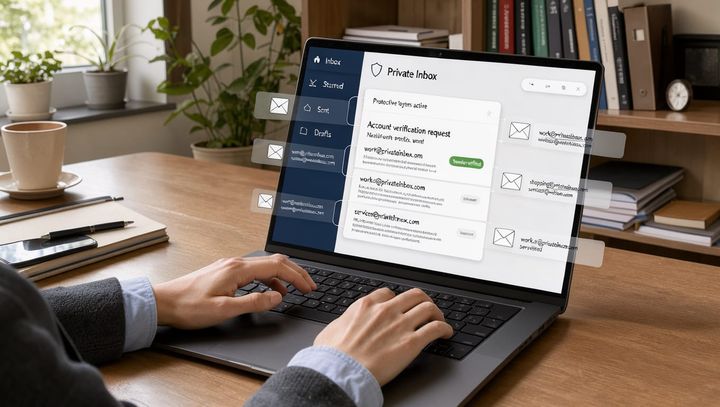
A message that appears to come from our bank can still be a scam, so we should verify the sender before sharing information or clicking a link. Phishing awareness starts with slowing down when a message asks us to act, sign in, or share details.
Scammers may copy the look of a bank, utility company, or other familiar organization. Spelling errors and an unfamiliar sender address can be clues, but careful scams may avoid both. We should inspect the full message and verify unusual requests through a contact method we already know.
Build phishing awareness around suspicious messages
Phishing messages try to get us to click a link, open a file, or share information. A message may claim that a bill is overdue or an account needs attention. We should look closely at the sender’s address and the link destination before replying or opening anything.
Spelling mistakes and an address that differs from the one we expect are warning signs, not proof by themselves. A message can look polished and still be fake. If it claims to be from a bank or utility, we can use a saved number or type the known website address ourselves.
Do not use the phone number or link in a suspicious message to check its claim. A real organization can confirm whether it sent a request through a contact method we already trust. This step helps us avoid handing information to an impostor.
Recognize smishing texts and impersonation attempts
Smishing is phishing sent by text message. A text may pretend to be from a delivery service, bank, or government office and ask us to tap a link. It may also claim that a family member needs urgent help or that a payment failed.
We can inspect the sender and destination without opening the link. A shortened or unfamiliar web address may hide where it leads, and a known name in a text does not prove who sent it. If a message claims to come from a person we know, we can contact them separately using a number we already have.
Impersonation attempts often push us to act quickly or keep a request secret. We should pause rather than share a code, payment detail, or identity record under pressure. A separate call or message can help us confirm the request is real.
Check website security before entering personal information
Before entering personal information, check that the website address matches the organization we intended to reach. HTTPS and a lock symbol show that the connection is encrypted. They do not confirm that the site belongs to a trustworthy organization.
Scammers can make websites that look like real stores or banks. We can watch for misspelled names in the address and avoid reaching a site through an unexpected message. If the address seems wrong, leave the page and use a known contact method to find the organization.
Check the site’s name and address before entering payment or identity details. An encrypted connection protects data as it travels, but it cannot make a dishonest seller honest. If a message creates urgency, pause and contact the organization through a number or website we have used before.
Respond to Identity Theft or a Data Breach
If we find an unfamiliar account or learn that a family member’s information was exposed, we should secure affected accounts first and then choose the tools that address the specific risk. Identity theft prevention tools serve different purposes: monitoring can flag changes, fraud alerts ask creditors to verify identity, and a security freeze blocks access for new credit.
A freeze does not stop someone from taking over an existing account. We should watch accounts and credit reports, then act on signs of misuse. The steps below help us respond without losing track of the records that need attention.
Use identity theft prevention tools such as credit monitoring, fraud alerts, and credit freezes
Credit monitoring can alert us to changes in a credit file, but it does not block new credit or protect existing accounts. A one-year initial fraud alert can be placed with one nationwide credit reporting company, which must notify the other two. Creditors who see the alert should take steps to verify identity.
An extended fraud alert lasts seven years and requires a filed identity theft report. Creditors must contact us to verify identity before approving new credit. A free security freeze must be placed separately with Equifax, Experian, and TransUnion, since one bureau does not notify the others.
A freeze blocks new creditors from accessing a credit file until we lift it, but it does not prevent takeover of existing accounts. A credit freeze’s limits matter when we choose the right tool. Credit reporting companies must block fraudulent information within four business days after receiving an identity theft report, proof of identity, and a request identifying that information.
For a child, a parent or legal guardian must request a minor freeze separately from Equifax, Experian, and TransUnion. Equifax requires documents that verify the adult’s identity, the child’s identity, and their relationship. The Equifax freeze is free and may take up to three business days after all required documents arrive. It stays until the adult acts or the child acts after turning 16.
Watch for warning signs that personal information was misused
Warning signs include unfamiliar accounts, charges we did not make, bills for services we did not use, or a notice that a return was already filed. A child may have a credit file even before applying for credit. We should take an unexpected notice seriously and check the account or record named in it.
We can get free weekly credit reports from Equifax, Experian, and TransUnion at AnnualCreditReport.com. Checking those reports does not affect credit scores. Requests are available online, by phone, or by mail; phone and mail reports typically arrive within 15 days.
Call 1-877-322-8228 to request reports by phone. Compare each report for accounts or details we do not recognize, since a security freeze does not show whether someone accessed an existing account. A credit report can help us spot activity that needs a closer look.
Take practical steps after a data breach
After identity theft, close affected accounts and contact the financial institutions’ fraud or security departments. Report the theft at IdentityTheft.gov. If fraudulent information appears on a credit report, request a block and provide the required identity proof and theft report.
Use these steps to keep the response clear:
- Close affected accounts.
- Contact each financial institution’s fraud or security department.
- Report the theft at IdentityTheft.gov.
- Request a credit-report block for fraudulent information.
In 2026, anyone with a Social Security number or individual taxpayer identification number who can verify their identity can enroll in the IRS Identity Protection PIN program. Parents and legal guardians can request an IP PIN for dependents. This six-digit number helps stop someone else from filing a federal return using that person’s number, lasts one calendar year, and renews annually.
The IRS app or online account is the fastest way to request or retrieve an IP PIN. Online enrollment can be continuous or one-time; one-time enrollment ends at calendar year-end. A dependent under 18, or someone unable to set up a Login.gov or ID.me account, needs another option, such as a parent or guardian’s Form 15227 or an in-person IRS appointment.
In 2026, Form 15227 is available to people unable to establish an IRS online account whose last filed adjusted gross income was below $84,000 individually or $168,000 for married filing jointly. After identity checks, the IRS usually mails the PIN within four to six weeks and mails future yearly PINs. After in-person verification at an IRS Taxpayer Assistance Center, the IRS usually mails it within three weeks.
The IP PIN must go on federal returns filed that year, including prior-year returns. A missing or wrong PIN can reject an e-filed return or delay a paper return. The IRS online IP PIN system will be offline starting November 16, 2026, until mid-January 2027. IRS IP PIN enrollment rules include these timing and filing details.
Dependents under 18 must use an alternative to ordinary online enrollment. A parent or guardian may request their PIN with Form 15227 or an in-person appointment. Taxpayers should not reveal an IP PIN except to their tax professional when ready to sign and submit a return; the IRS will never ask for it.
Keep an IP PIN private and share it only with a tax professional when ready to sign and submit a return.
Conclusion
We do not need perfect control over every record to make our family’s information harder to misuse. A shared routine helps us notice small risks before they grow, and one check is enough to begin.
Family data safety does not depend on a single tool. We can build personal information security through small choices that fit our household, then repeat them when accounts or devices change. A brief check together can also help children learn when to pause before sharing.
Today, choose one family account and review its privacy and security settings together.
FAQ
How often should we change our passwords?
We should change a password promptly if it is exposed or we suspect someone has used it. Each account should have its own unique password, so changing one does not mean changing every account. A password manager can help us avoid reuse and create long passwords without memorizing each one. Turn on multifactor authentication when the account offers it.
Does HTTPS mean a website is safe to use?
No, HTTPS does not prove that a website belongs to the organization it claims to represent. It encrypts information traveling between the browser and the site, which helps protect the connection. Scammers can also use HTTPS on fake sites. We should check the web address and reach a company through a contact method we already trust.
Is public Wi-Fi safe for online banking?
We should avoid banking or shopping over public Wi-Fi when a trusted, password-protected connection is available. Public networks may offer limited protection, and we may not know who manages them. HTTPS encrypts a connection, but it does not make a fake site trustworthy. Use a familiar home network or trusted mobile connection for sensitive tasks.
What should we do if our child’s Social Security number may have been exposed?
We should check whether the child has credit files and consider a separate minor security-freeze request with each nationwide credit bureau. Equifax requires documents that verify the adult, the child, and their relationship. Its freeze is free and may take up to three business days after all required documents arrive. Check for unfamiliar accounts or activity as well.
What is the difference between a fraud alert and a credit freeze?
A one-year initial fraud alert asks creditors to verify identity, and the bureau that receives it must notify the other two. A security freeze blocks new creditors from accessing a credit file until we lift it. We must request a freeze separately from Equifax, Experian, and TransUnion. Neither tool prevents someone from taking over an existing account.
Can we get an IRS IP PIN for a dependent?
Yes, a parent or legal guardian can request an IP PIN for a dependent. A child under 18 cannot use ordinary online enrollment and needs another option, such as Form 15227 or an in-person IRS appointment. The PIN lasts one calendar year and must be entered on federal returns filed during that year, including prior-year returns.
Explore Ways To Protect Your Privacy and Reduce The Exposure of Your Personal Information
"Protecting your personal information is an important step toward maintaining your privacy. But there's more to personal protection than what happens online. Explore our guide to the 5 Pillars of Personal Protection to discover the other areas worth securing."

Comments ()